
ACTIVEX / SETUP CENTRE
Get ready to copy ActiveX.
ActiveX runs through V-Social using your own live Vantage trading account. Complete the setup below first, then return here to open ActiveX directly.
Already have V-Social set up and your Vantage trading account linked? Open ActiveX directly.
Copy trading involves risk. You may lose some or all of the money you allocate.
THE JOURNEY AT A GLANCE
Watch the setup walkthrough
Find your way around each platform, then follow the highlighted controls.
Pause, resume or drag the timeline in either direction. Choose a chapter to revisit a section, then press Play when ready. Use CC for full narration captions. The guide also works without sound.
01Set up your Vantage accountCreate and verify an account, or sign in.
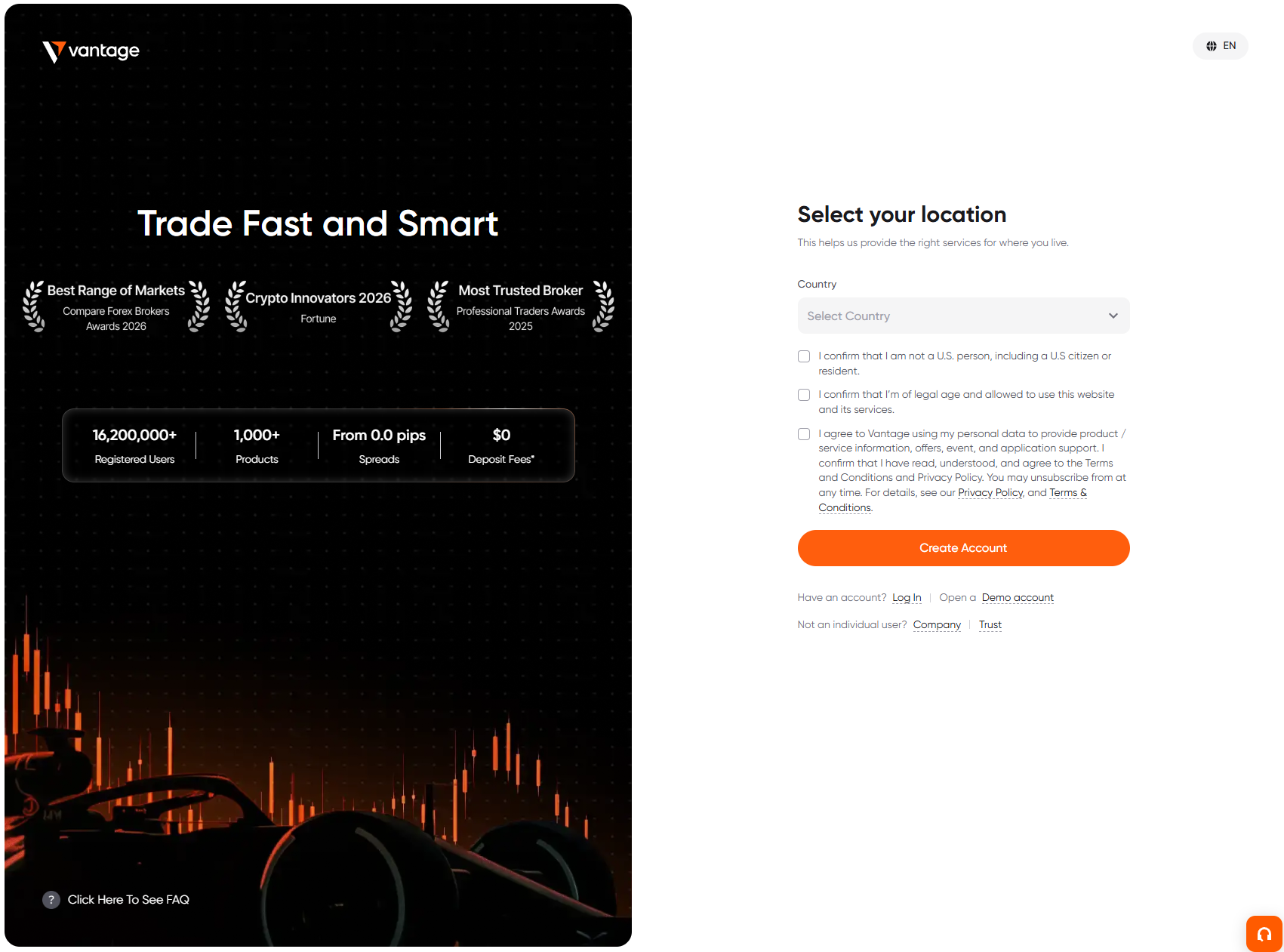
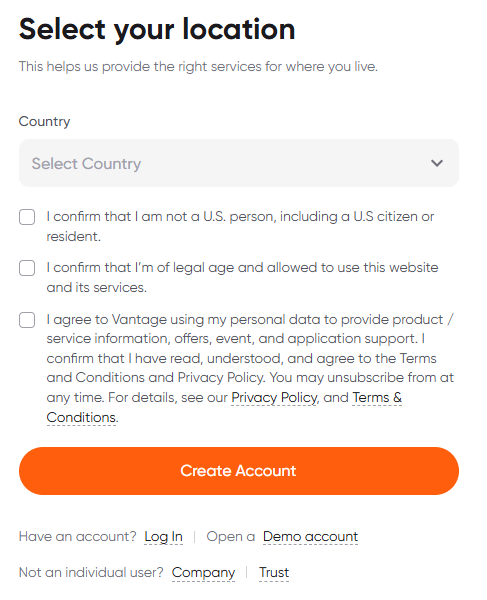
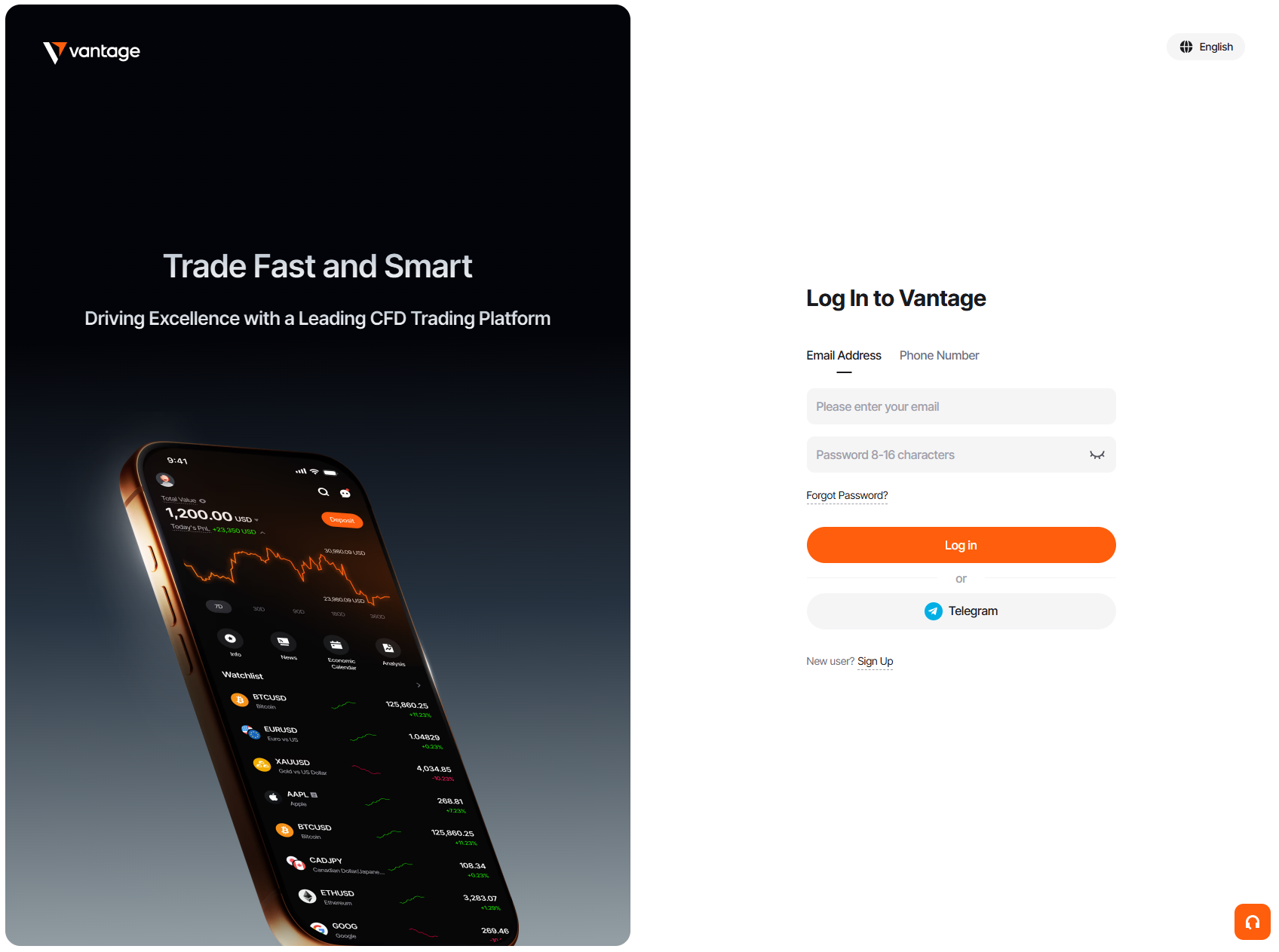
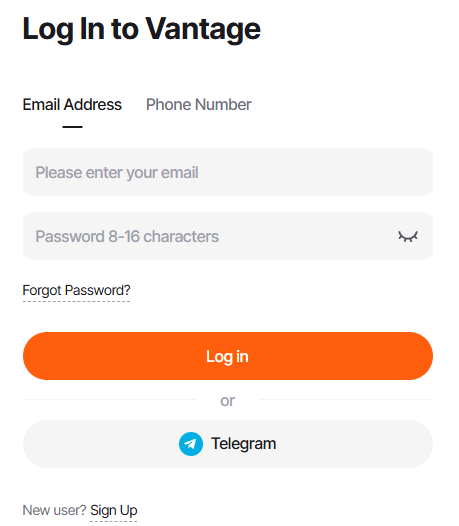
02Open a live trading accountComplete account setup and any required funding.
You need your own live Vantage trading account before it can be linked to V-Social. Vantage’s V-Social guide covers MT4 and MT5; ask Vantage to confirm your account type, platform and server. Check country availability and current funding requirements in your client portal and the trading-account help below before depositing.

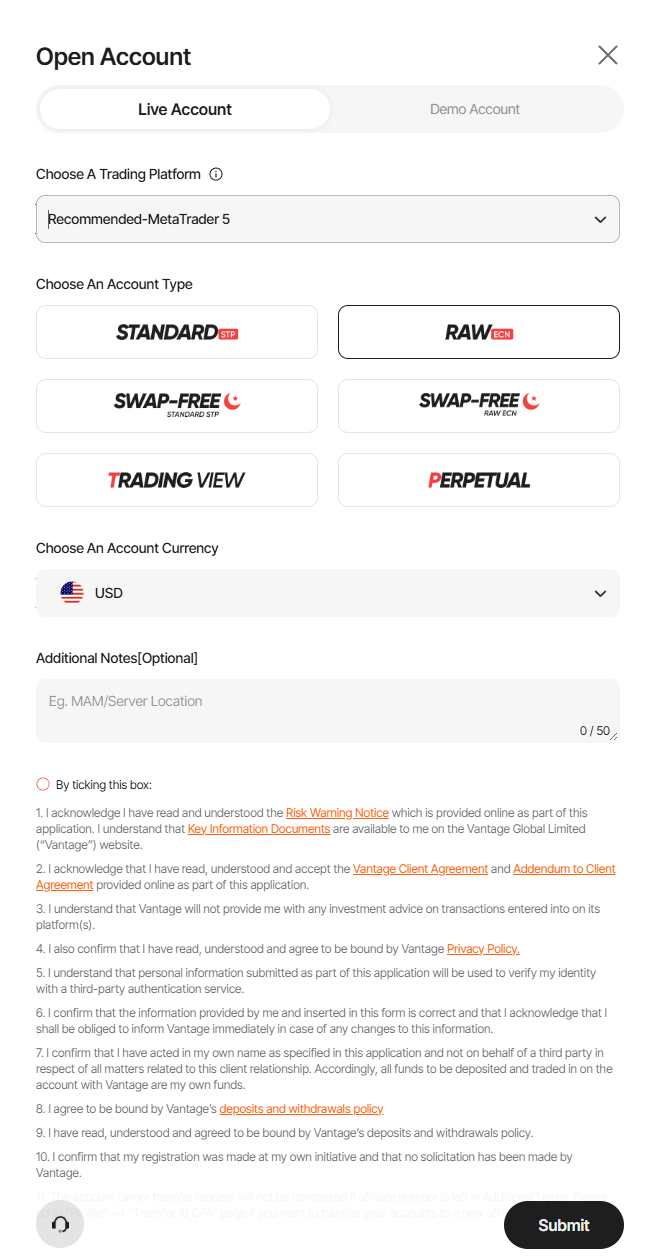
See an example account-opening screen
The example shown uses an MT5 Raw ECN account. Your available trading account options may differ. This is not a recommendation of the platform, account type, currency or settings shown.
03Create your V-Social profileVerify your email, then return and sign in.
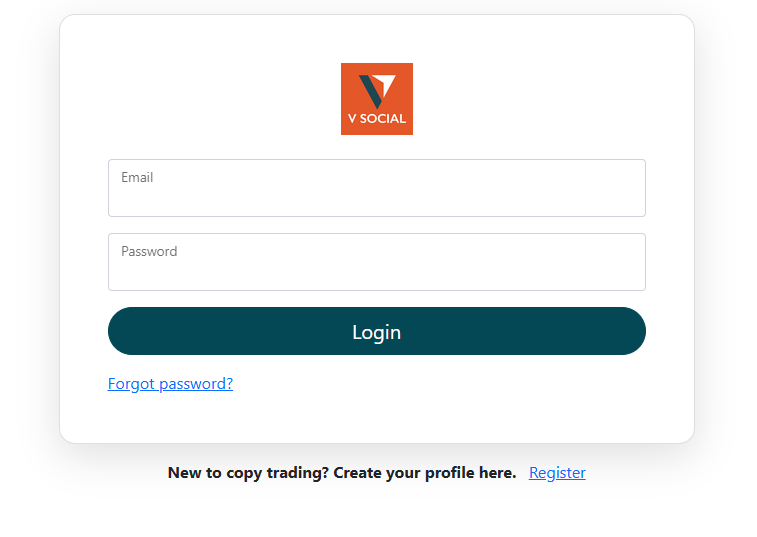
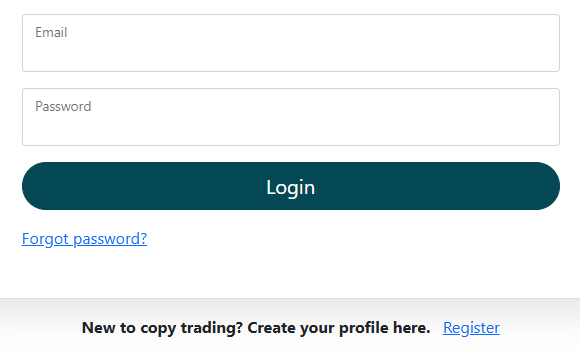
Create your V-Social profile, verify the email V-Social sends, then return and sign in. Enter V-Social credentials only on the official V-Social service.
04Link account: choose your serverSelect the matching server first.
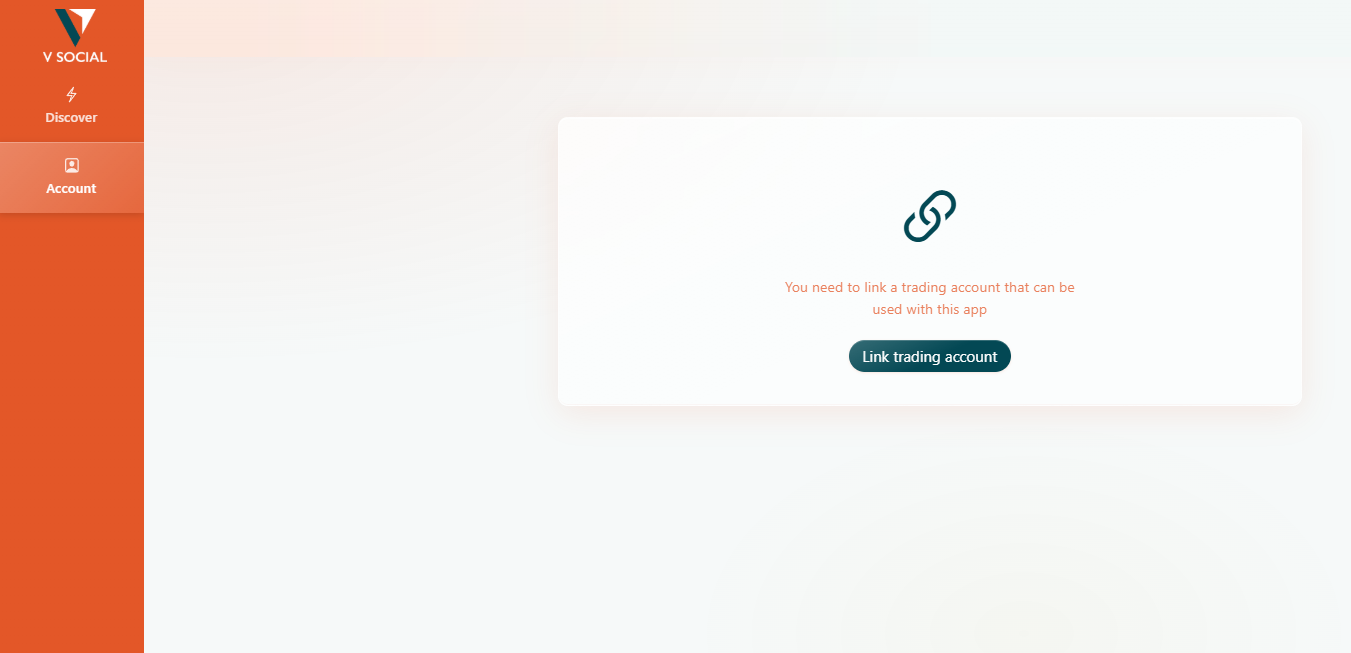
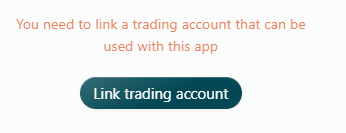
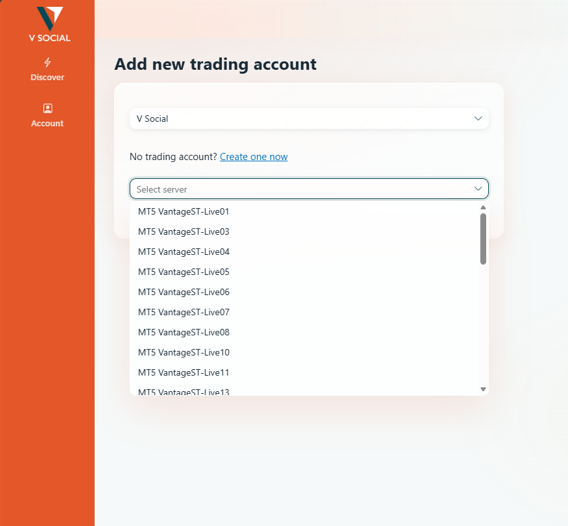
In V-Social, open Account → Link trading account. This opens the account-linking flow. Select the matching Vantage trading server first. Your server name may look slightly different in V-Social. Find the assigned server in your Vantage trading-account login email. Match the platform and Live server number carefully.
V-Social › Account › Link trading account
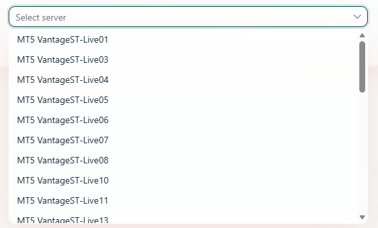
05Enter your account detailsAfter selecting your server, enter your account number and password.
After selecting the matching server, enter your trading account number, then your trading password.
V-Social › Account › Link trading account
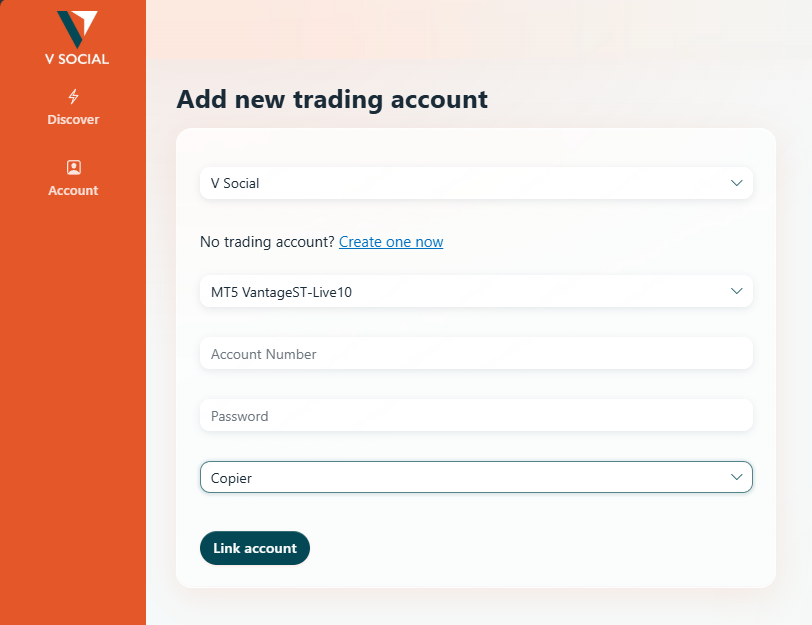
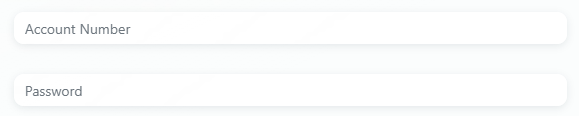
Only enter account credentials directly on Vantage or V-Social. Gold TrAIder will never ask for your trading password or login credentials. Gold TrAIder does not receive your investment funds.
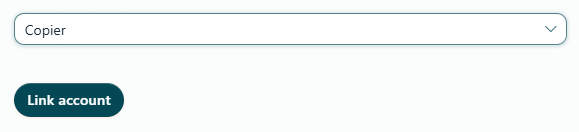
06Select Copier and link the accountComplete the link after your server and account details.
Once you have selected your server and entered your account number and trading password, select Copier when the account-role option appears, then link the account.
V-Social › Account › Link trading account
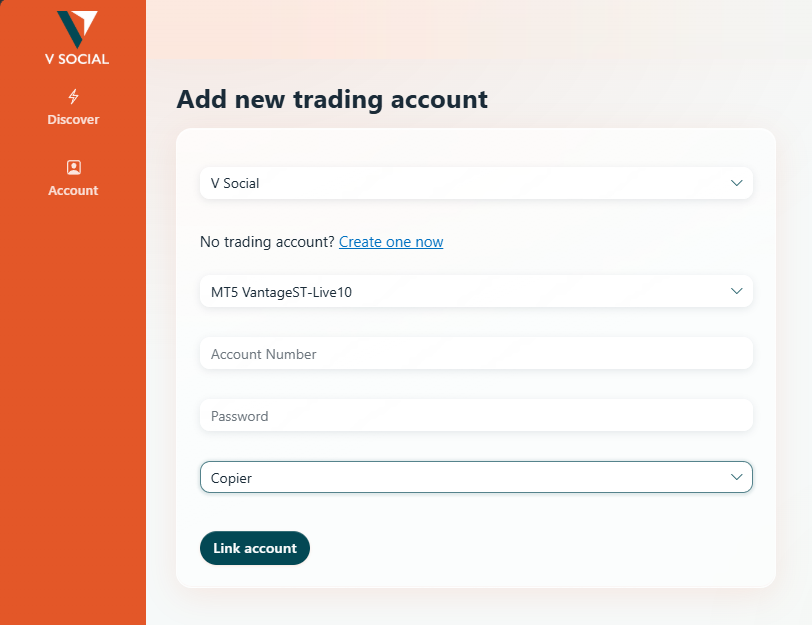
Only enter account credentials directly on Vantage or V-Social. Gold TrAIder will never ask for your trading password or login credentials. Gold TrAIder does not receive your investment funds.
07Return to Gold TrAIderUse the direct ActiveX link on the strategy page.
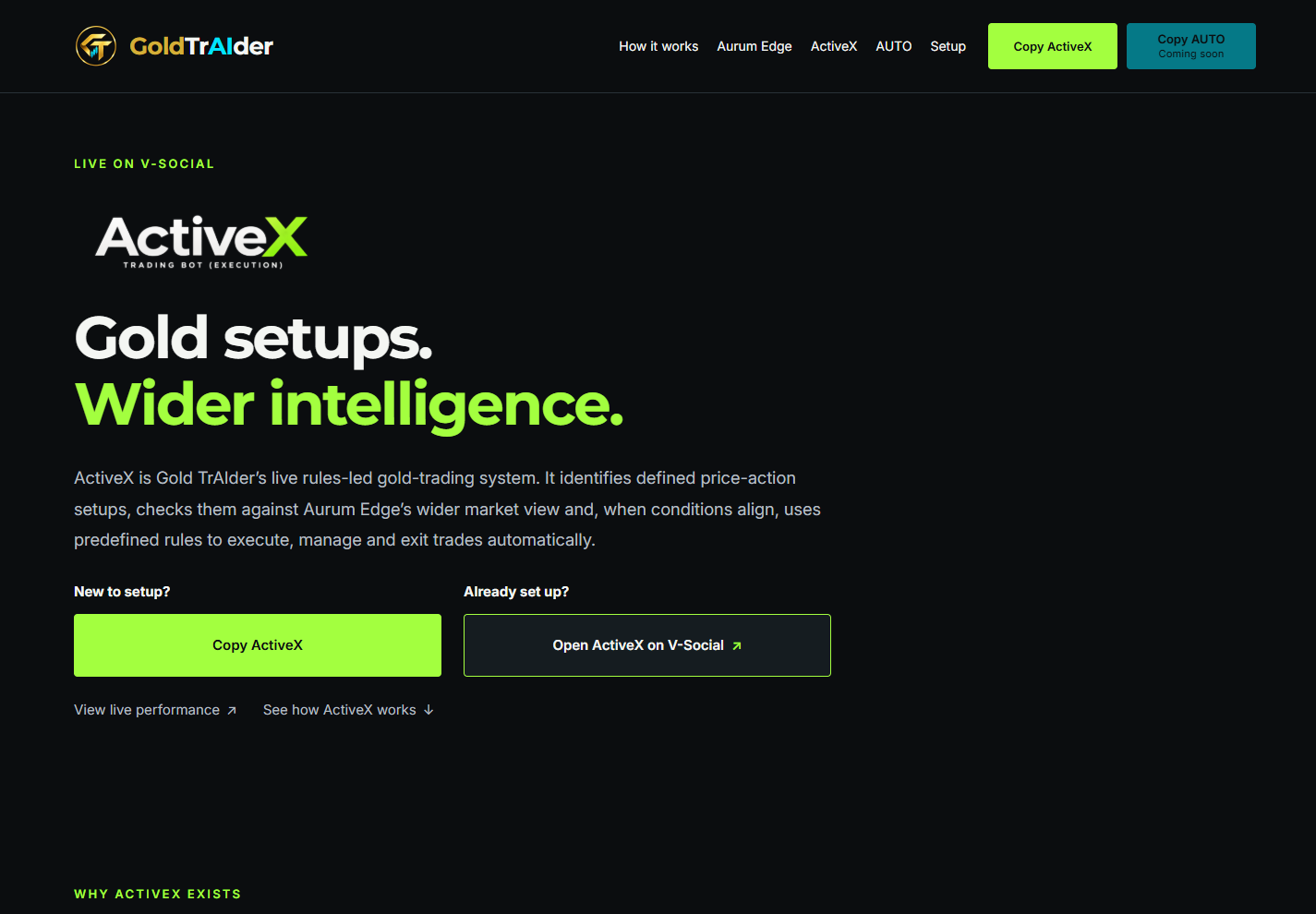
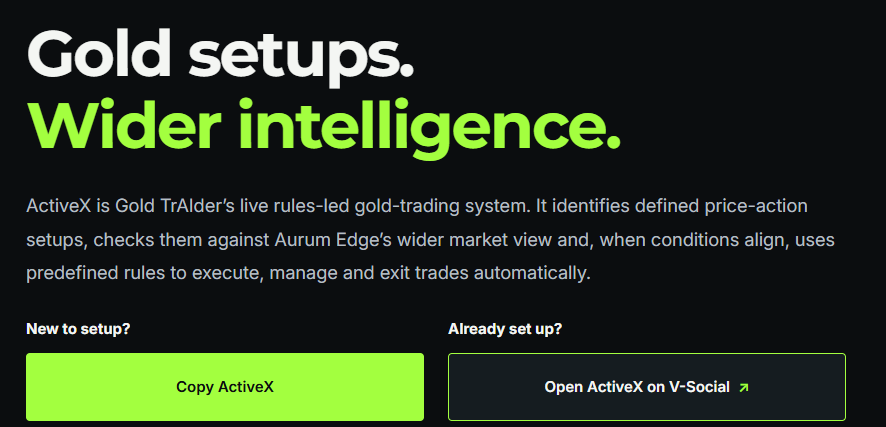
Once your trading account is linked, return to the Gold TrAIder ActiveX page. In the action area, find Already set up? and select Open ActiveX on V-Social to open the strategy directly.
Gold TrAIder › ActiveX › Already set up
Opening this link does not start copying. You make any final confirmation in V-Social.
08Review ActiveX before copyingReview the strategy, fee and your own copy settings.
The Copy option should be available when the required platform setup is complete. Check you are viewing ActiveX, strategy 2100112. Select Copy to review the platform’s setup and controls.
V-Social › ActiveX › Copy
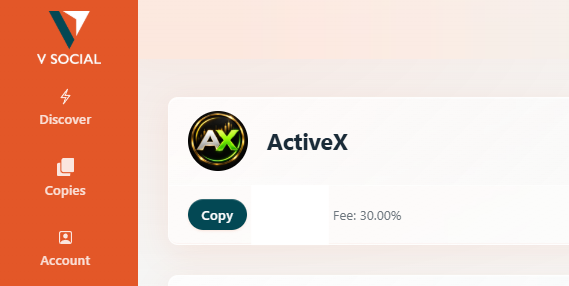

Live on V-SocialStrategy 210011230% performance fee
Opening this link does not start copying. You make any final confirmation in V-Social.
Review the strategy information, V-Social’s current platform information and terms, your own allocation/copy settings, and the controls V-Social provides before confirming.
Trouble opening the direct link?
If needed, open Discover and search for ActiveX. Check strategy ID 2100112.
Copy trading involves risk. You may lose some or all of the money you allocate.
Read risk informationWHEN YOU NEED A HAND
Need help with setup?
Choose the stage you are at. Setup guidance is general; Vantage and V-Social handle account access and platform checks.
Vantage account
Registering gives you access to Vantage’s client portal; it does not by itself mean a live trading account is ready to copy. Check approval and any outstanding verification there. Portal and trading-account passwords are separate. Use the relevant sign-in help below, or ask Vantage to check account access and availability. Vantage portal password help · Trading-account login help · Vantage account support
Email about vantage accountOpening a trading account
Copying uses your own live Vantage trading account. Vantage’s V-Social guide covers MT4 and MT5, but does not list every supported account type. Before opening or funding an account, ask Vantage to confirm your account type, platform and server for the Pelican-powered V-Social service at vantage.copy-trade.io. Existing users can ask about their current account. Check country availability and current funding requirements in your client portal and the official guidance below; broker deposit limits are not a recommended copying amount. The MT5 Raw ECN screenshot is an example, not a requirement. V-Social account-linking guide · Vantage country restrictions · Current deposit requirements · Vantage account support
Email about opening a trading accountV-Social registration
Create your profile on the official V-Social service, then verify your email before signing in. If you already have a profile, sign in rather than registering again. For registration or access problems, ask Vantage support about V-Social at vantage.copy-trade.io; app and web labels may differ. V-Social registration guide · V-Social access support
Email about v-social registrationVerifying V-Social email
Check the email V-Social sends, including your spam folder. Follow the verification instructions, then return and sign in. If it does not arrive or the link fails, ask Vantage support to check your V-Social registration and verification email. V-Social email-verification guide · V-Social access support
Email about verifying v-social emailLinking a trading account
Follow steps 4 to 6: open Link trading account, select the matching server first, then enter your trading account number and trading password. Select Copier when the role appears, then link the account. Enter details only inside the official V-Social service. The official guide covers MT4 and MT5; app and web labels may differ. If linking fails, ask Vantage to check your account type, platform, server and access to this V-Social service. Gold TrAIder cannot change these for you. V-Social account-linking guide · Account-linking troubleshooting · Vantage account support
Email about linking a trading accountFinding your server
Find your assigned trading server in Vantage’s trading-account login email and check your account details in the client portal. Match the platform and Live server number in V-Social. The server article’s scan instructions apply to MT4/MT5, not V-Social. If the name differs or your server is missing, ask Vantage to confirm the correct V-Social selection for your account; the guide’s mapping is only an example. Find your Vantage trading server · Confirm your server with Vantage
Email about finding your serverOpening ActiveX
Once your account is linked, return to Gold TrAIder as shown in step 7. Use the direct ActiveX link, then review the Copy screen in step 8. Check strategy ID 2100112. If needed, open Discover and search for ActiveX.
Email about opening activexCopy settings
Review V-Social’s descriptions and controls. To stop new copied trades, use Uncopy for ActiveX. Pelican’s platform help describes Account → Strategies → select the signal → Uncopy. Before confirming, choose whether existing positions continue mirroring, close, or become manually managed. Stopping does not automatically close them. If your controls differ or you need account help, contact official V-Social support. Gold TrAIder can help you find setup information, but cannot choose personal allocation or risk settings for you. Platform stopping instructions · Official V-Social help
Email about copy settingsGold TrAIder will never ask for your trading password or login credentials. Do not send authentication codes, API credentials or full bank/card details.